If your iPhone seems to be sprinting toward empty by midafternoon, the problem may not be the battery itself. It may be the way the phone is being used.
Apple and several major how-to guides are circling the same idea: modern iPhones can last a long time, but a few settings quietly eat away at that advantage. The good news is that most of them are easy to tame. Some are obvious, others are the kind of thing you only notice after your phone has spent the day lighting up, refreshing, pinging location data, and gently vibrating itself into a shorter battery life.
A newer wrinkle in the mix is Apple’s Adaptive Power feature, which arrived with iOS 26 on Apple Intelligence-capable iPhones. It watches usage patterns and dials things back when it thinks you’ll need the extra margin. That means a slight brightness reduction, a bit less background activity, and, if needed, automatic Low Power Mode at 20%. On the newest models, including the iPhone 17 lineup and iPhone Air, it’s enabled by default. On older supported devices, you may have to switch it on yourself in Settings > Battery > Power Mode. It’s not magic, but it does take some of the guesswork out of battery management. Apple has also made battery oversight a little clearer in iOS 26, with more detailed usage views and charging estimates in iOS 26's little revolutions: Personal Voice, faster workflows and quiet fixes.
Still, if you want the phone to last longer today, the old-school fixes still matter.
One of the most effective moves is also the most familiar: Low Power Mode. You can turn it on manually, or set up an automation so it kicks in before the battery gets truly desperate. Apple’s own tips also make a strong case for trimming the settings that keep the screen awake, because the display is still the biggest battery bully in the room. The Always-On Display looks nice, especially on Pro models, but it keeps a live version of your lock screen visible even when the phone is idle. Turning it off can make a noticeable difference, and if you don’t want to kill it entirely, you can at least strip away wallpapers or notifications.
Screen settings, in general, deserve a close look. Dropping ProMotion displays from 120Hz to 60Hz with the Limit Frame Rate option can squeeze out a little more life. Lowering brightness helps too, of course, and locking the screen sooner means the phone stops wasting power when it’s sitting on a desk waiting for you to remember where you left it. If you own an older device and are already thinking about replacement, battery behavior can be a clue that the hardware is aging, not just your habits. That’s one reason checks like Check 'Battery Health' in Settings if your iPhone battery drains fast remain useful even when the phone still seems to charge normally.
Dark Mode is another one that really does matter, but mostly on OLED iPhones. Darker pixels draw less power, so if you spend a lot of time outdoors in bright light, or you simply prefer darker interfaces, it can shave off meaningful drain. It’s not a miracle cure in dim rooms, but it’s easy to keep on all day without much downside.
Then there’s the software clutter most people forget about. Location access is a classic battery leak, especially when apps ask for it more often than they should. A mapping app needs to know where you are; a random shopping app usually doesn’t. The same goes for Background App Refresh, which lets apps check in while they’re not open. Leaving it on for everything is convenient, but not particularly gentle on battery life. A Wi-Fi-only setting is a good compromise for some people, while others will be happiest shutting it off almost completely.
Notifications and Live Activities are the other silent drainers. Every alert that wakes the screen costs power. So do the persistent updates that keep sports scores, rides, deliveries, or timers pinned to the Lock Screen. If you’ve never gone through Notifications in Settings, this is the kind of cleanup that tends to pay off twice: the battery lasts longer, and your phone stops behaving like a slot machine of interruptions. Focus modes can help too, especially if you want to keep notifications available but reduce how often the screen lights up.
Apple also points to a smaller but still real annoyance: keyboard haptics. That tiny tap-vibration effect feels nice, but it uses battery every time you type. Turning it off won’t transform your iPhone’s stamina, yet it’s one of those settings that adds up over a long day of messaging, email, and searching. It’s an easy trade for people who’d rather have the battery than the buzz.
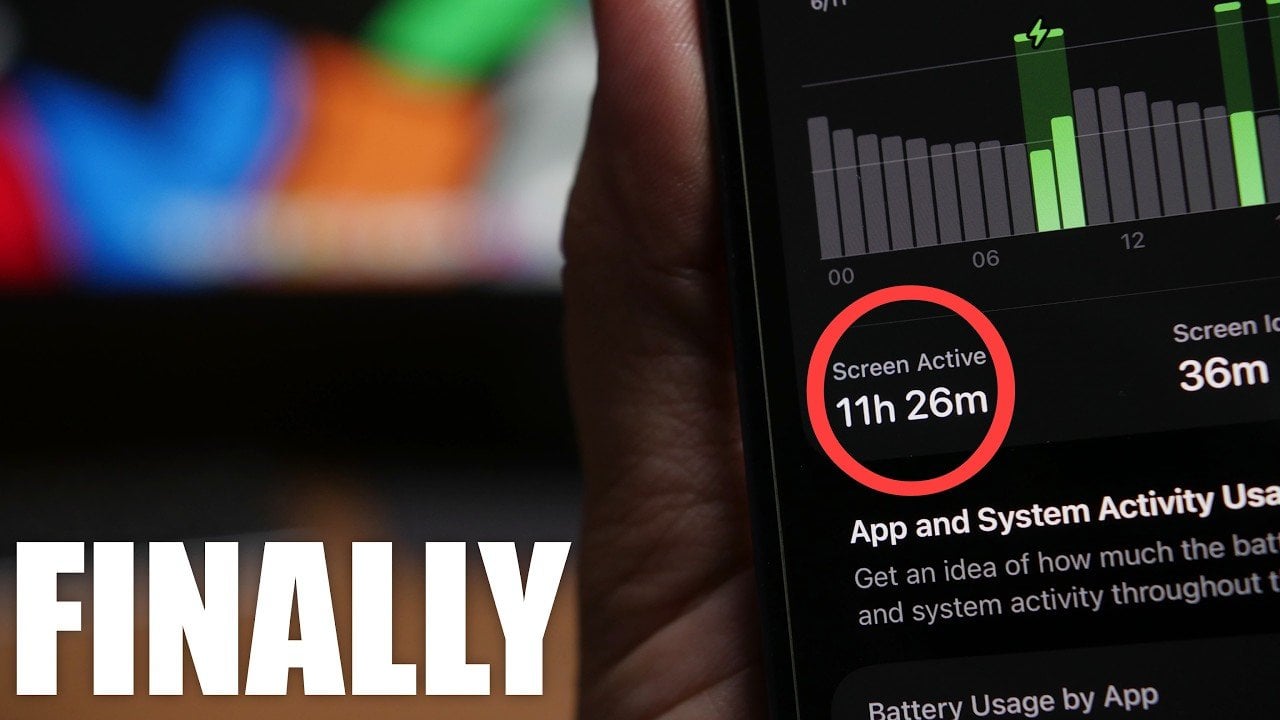
The part that often tells the full story is Battery settings itself. iOS now makes it easier to see which apps are draining the most power and why. If one app is constantly showing up in orange, that’s a clue worth following. Maybe it’s hammering background refresh, maybe it’s sending too many notifications, or maybe it’s just poorly behaved. Either way, the phone is trying to point a finger.
And if all of this sounds like a lot of tinkering, that’s because battery life on a modern iPhone is rarely about one big culprit. It’s usually a stack of little decisions: how bright the screen runs, how often apps wake up, how many widgets update, whether you leave location access on “Always,” and whether the phone gets to rest between all of that. In the same spirit, a few broader housekeeping steps can help, like checking whether your battery has simply reached the end of its useful life or, if it’s an older model, deciding whether a replacement makes more sense than continuing to nurse it along. If you’re also dealing with laggy performance, a deeper look at Apple’s iPhone Fold Could Ship in December — Expect an Earlier Announcement and the broader iPhone 18 Pro rumors cycle may be a reminder that some buyers would rather jump to newer hardware than keep optimizing old habits.
For now, though, the best battery-saving move is still a practical one: cut the stuff you don’t actually need, leave on the features that matter, and let iOS do a little more of the work for you.