Android Auto already does the basic stuff well: maps, music, calls, podcasts. But if you spend enough time in the car, the real friction isn’t launching the obvious apps — it’s repeating the same little commands over and over. Open Maps. Navigate home. Start a specific playlist. Call the same contact. That’s where one of Android Auto’s quieter customization tools comes in.
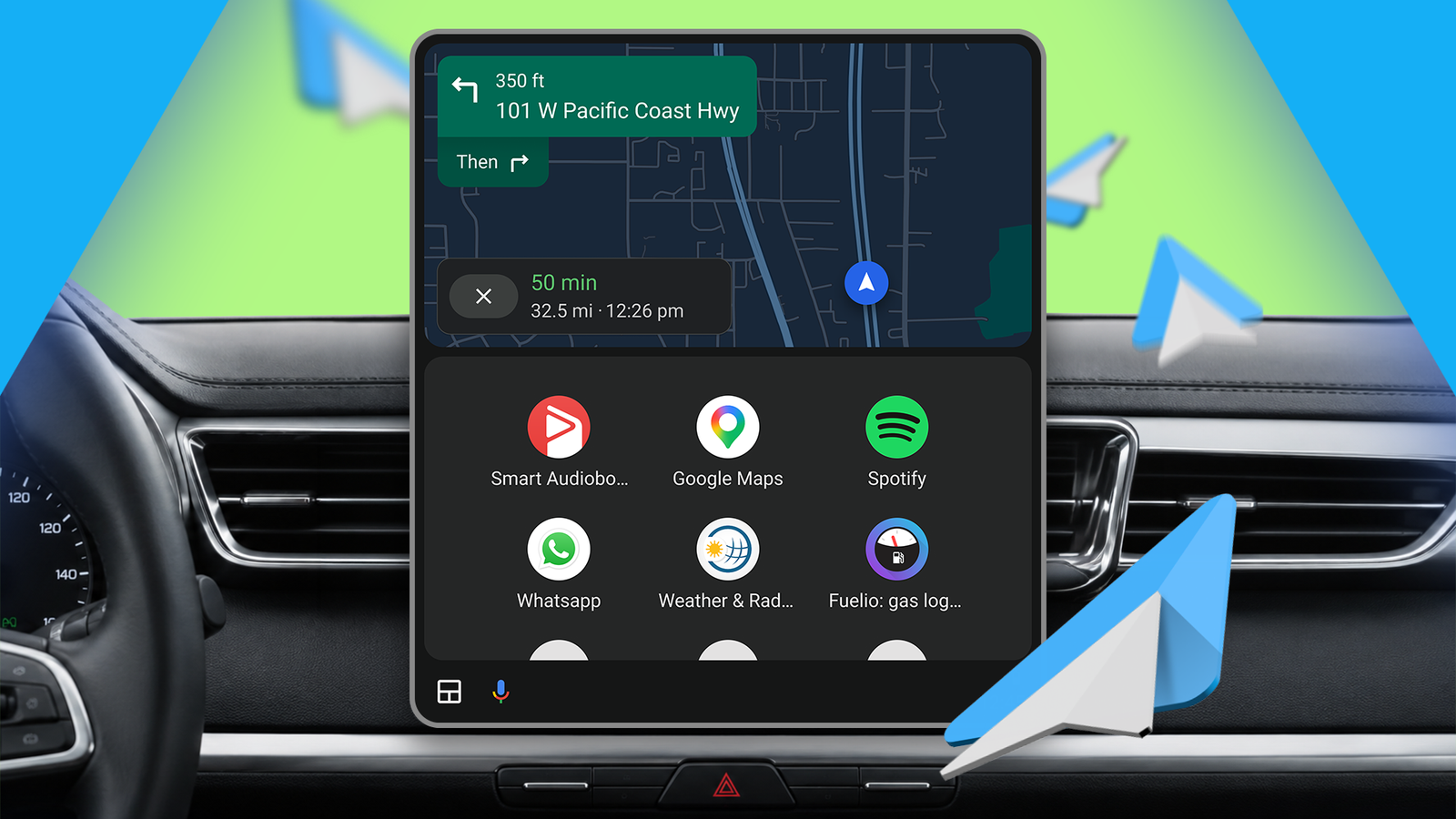
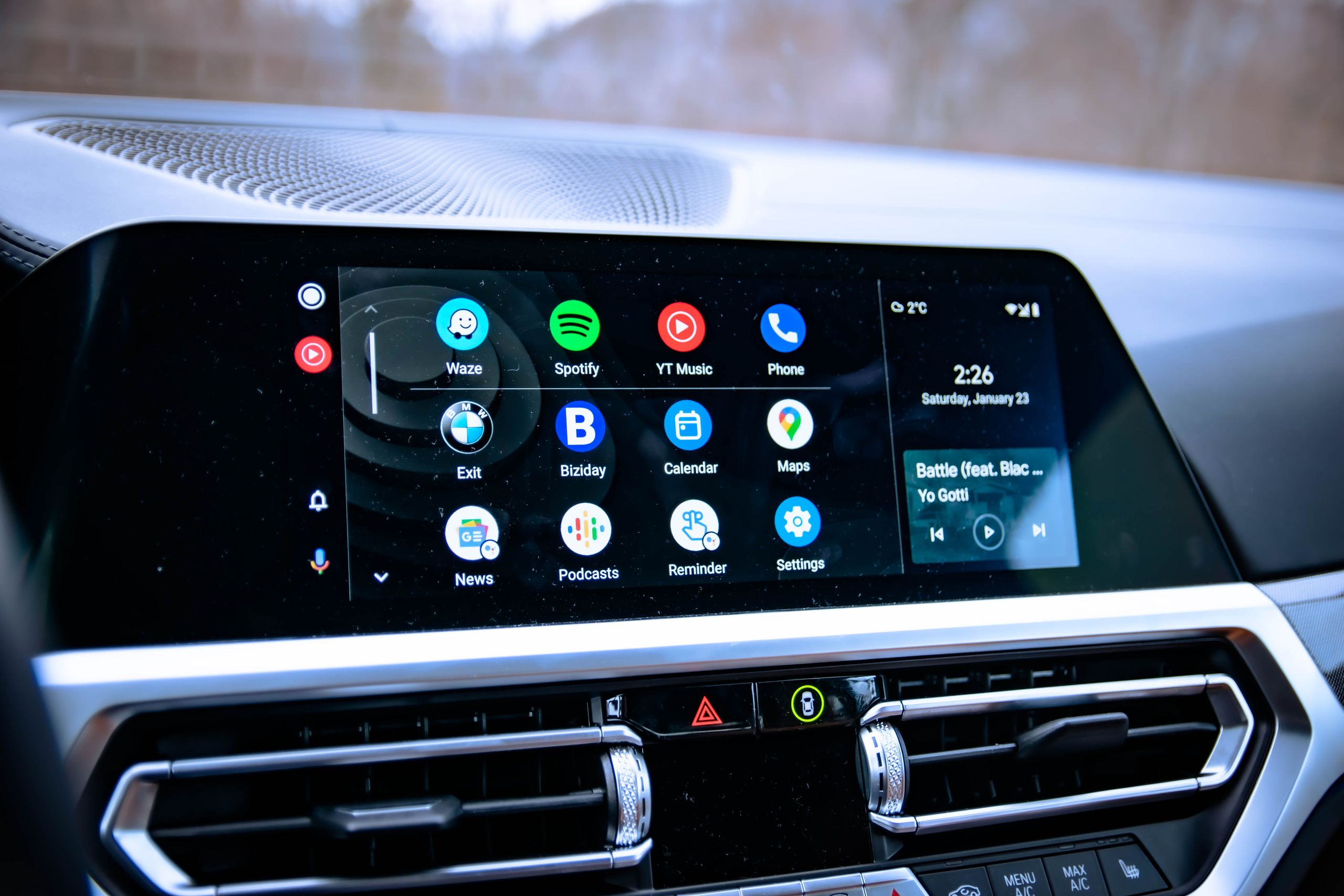
Buried in the launcher settings is an option that lets you create custom shortcut buttons for Google Assistant actions. They show up on your Android Auto home screen like regular app icons, except they don’t open an app at all. Tap one, and Android Auto fires off a preset Assistant command automatically. In practice, that means fewer voice prompts, less menu hunting, and one less thing to fiddle with while you’re supposed to be watching the road.
How the shortcut trick works
The feature lives inside Android Auto’s launcher customization menu. On the phone, you’ll need to open Android Auto settings through your Android device’s system menus — typically under Settings > Connected devices > Connection preferences > Android Auto — then head into Customize launcher. From there, Android gives you the option to add a shortcut.
When the prompt appears, choose the Assistant action option rather than calling a contact. That’s the key step. After that, you type in the exact command you’d normally say to Google Assistant. Think something precise, like asking Maps to navigate home or telling Spotify to play a specific playlist. Once you save it, Android Auto treats it as a tappable button on the car display.
It’s not glamorous, but it is useful. And because the shortcut launches instantly, it can feel a lot more dependable than waiting for a voice assistant to correctly hear you in a noisy cabin.
That matters even more now that Google is trying to push Android Auto forward with more AI-driven features. In practice, though, a lot of drivers still prefer the older, simpler behavior of Google Assistant — especially when it works predictably. Patrick O'Rourke recently noted that he still leans on Android Auto’s quick-access tools and launcher cleanup to keep his dashboard usable on long drives, rather than leaving everything to chance. That same impulse is what makes these shortcuts appealing: less talking, less tapping, fewer surprises.
A small setup step, a big payoff
Google doesn’t exactly advertise this feature, which is a shame, because it fits Android Auto’s whole reason for existing. The platform is supposed to keep your hands on the wheel and your attention ahead. If you can replace a few repetitive tasks with custom buttons, that’s a meaningful quality-of-life improvement.
It also pairs nicely with some of Android Auto’s other underused tweaks. Reorganizing the launcher so your most-used apps sit up top makes a huge difference, as does trimming out apps you never touch. XDA’s recent look at simple Android Auto optimizations for long drives made the same basic point from a different angle: the less you have to hunt around, the better the whole system feels.
And if you’re still fighting with Android Auto’s interface itself, there’s more you can do beyond shortcuts. Some drivers are using hidden settings to force steadier display behavior, while others are turning to developer options to get sideloaded apps working again. We’ve already seen how useful those buried controls can be in stories about fixing Android Auto disconnects and bringing custom apps back into the launcher. The shortcut trick sits in that same category: not flashy, just quietly practical.
The catch is that Assistant still has to understand the command you feed it. So the trick works best when you keep things clear and specific. Think of it as building a shortcut for a command, not a natural conversation. If you do that, you can turn Android Auto into something a lot closer to a personal cockpit than a generic phone mirror.
A few taps in the settings menu is all it takes. After that, your car screen can carry exactly the actions you want most — without asking Google to improvise.